Managed Services Orders
To review the progress of current or past Managed Services orders in Aegis:
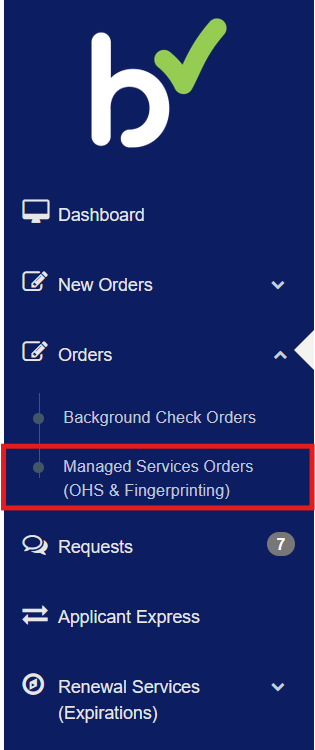
Use the left navigation panel.
Select Orders > Managed Services Orders.
Note: Depending on the services enabled for your account, you may not see every option referenced in this article.
Searching
You can narrow your results using several filters, including:
Name
SSN
Date
Status
Service
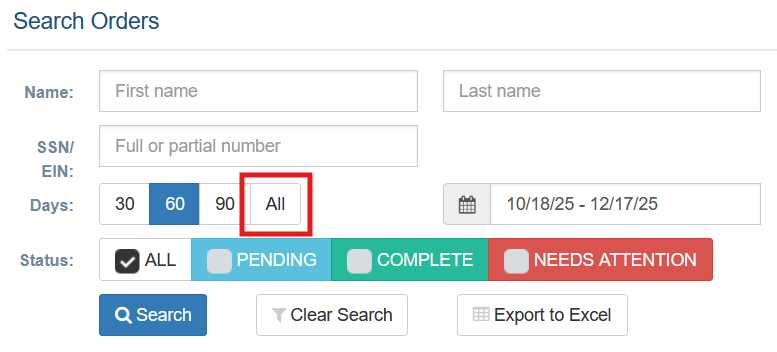
By default, Aegis displays results from the last 60 days. To view older orders, change the date range to All.
Searching By Service
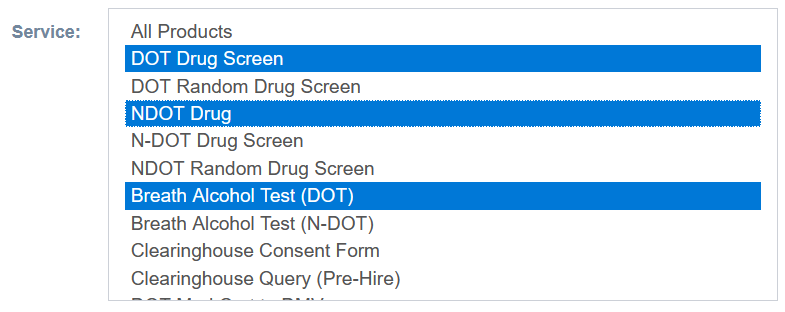
If you only need results for a specific service (or a small set of services), use the Service filter.
To select multiple services, hold Ctrl on your keyboard and click each service you want to include.
Exporting to Excel
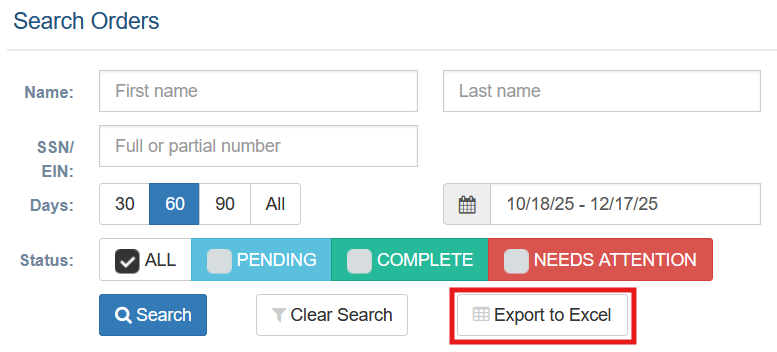
To export your results, click Export to Excel (located under the search options).
The export includes a list of subject names and the services ordered. It does not include detailed result documents or report-level data.
Sorting
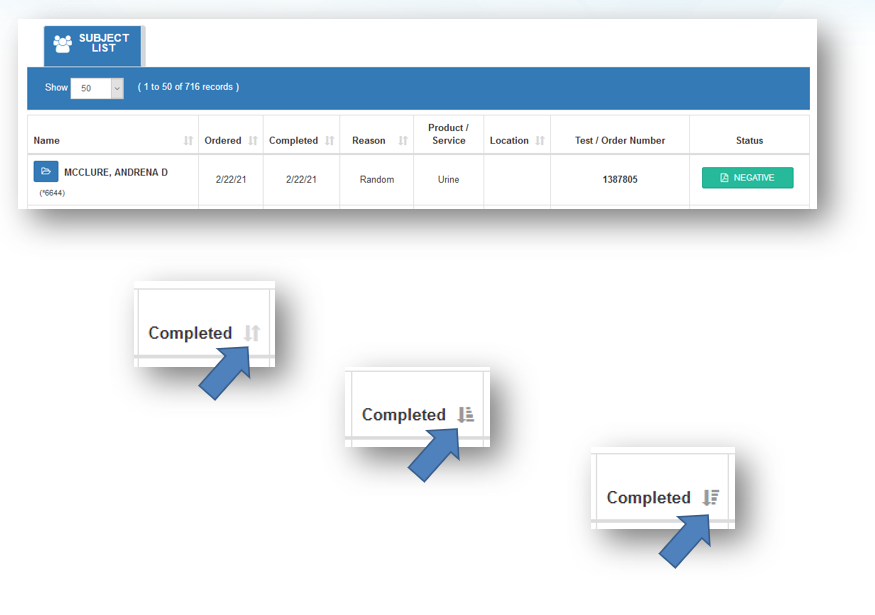
You can sort the subject list by clicking the arrow icons next to a column header:
Click once to sort ascending
Click again to sort descending
By default, the list is sorted by Order Date (newest to oldest). You can sort by fields such as:
Name
Date Ordered
Date Completed
Reason
Location
Status – Drug Screens
Managed Services statuses vary by service. For more details, click the Status value on the order.
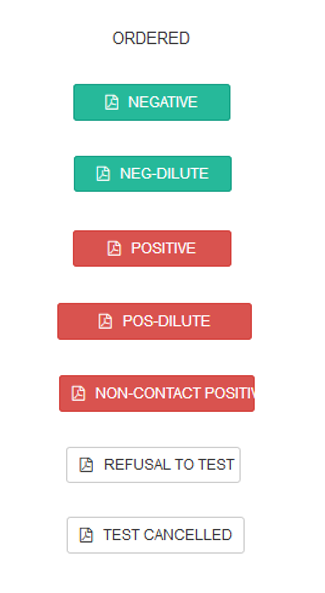
For Drug Screening, you may see statuses such as:
Ordered
Negative
Neg-Dilute
Positive
Pos-Dilute
Non-Contact Positive
Refusal To Test
Test Cancelled
Not Reported
Status – DOT Physicals
For DOT Physicals, the status typically changes from Ordered to the outcome of the exam. Click the Status to view exam documents.
You may see:
Qualified – 2 Year
Qualified – 1 Year
Qualified – Other
Awaiting Addl Info
Unqualified
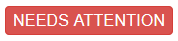
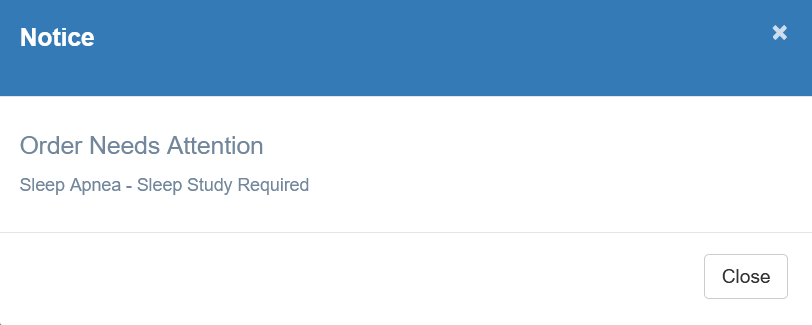
If the status shows Awaiting Addl Info, Aegis will indicate what’s needed to complete the exam. You may also see a Needs Attention alert beneath the employee’s name—click it to view additional details.
Order Details
To view actions and details for a specific order, click the employee’s name.
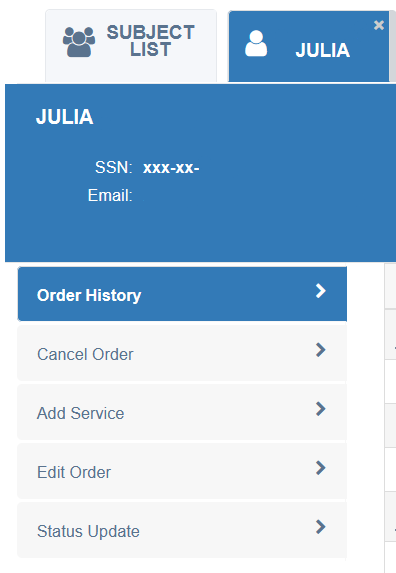
From the order details page, you will be able to:
- Request to cancel the order
- Add a new service
- Edit order information (such as email address or expected clinic visit date)
- Request a status update
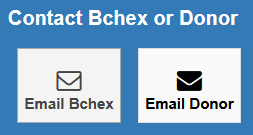
When requesting a status update, Aegis will open a preformatted email addressed either to the applicant or to Bchex Client Services (depending on the option selected).
Order Notes
Some orders include notes for additional context—for example, if:
The applicant contacted our team, or
We contacted the clinic on the applicant’s behalf
If notes are available, they will appear under Notices. Click the notice to view the full details.
Order Confirmation Form
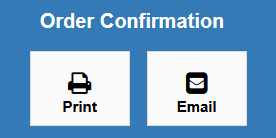
To print or resend the applicant’s Order Confirmation Form, open the order details and select the appropriate button.
The Order Confirmation Form is the document the applicant should bring to the clinic.
Was this article helpful?
That’s Great!
Thank you for your feedback
Sorry! We couldn't be helpful
Thank you for your feedback
Feedback sent
We appreciate your effort and will try to fix the article