TABLE OF CONTENTS
- Manage Users
- Add a User
- Duplicate User ID
- User Permissions
- View and Edit Users
- Disable a User
- Send Credentials
- Multiple Accounts
- Single Sign on
Manage Users
Aegis allows you to manage users within your account, including adding new users, updating permissions, disabling access, and resending credentials.
Note: Only users with Administrative permissions can manage other users.
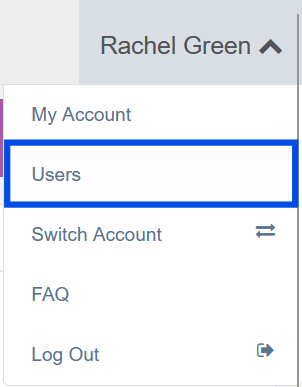
To access user management:
Click your name in the upper-right corner of Aegis.
Select Users.
Add a User
To add a new user:
Navigate to the Users page.
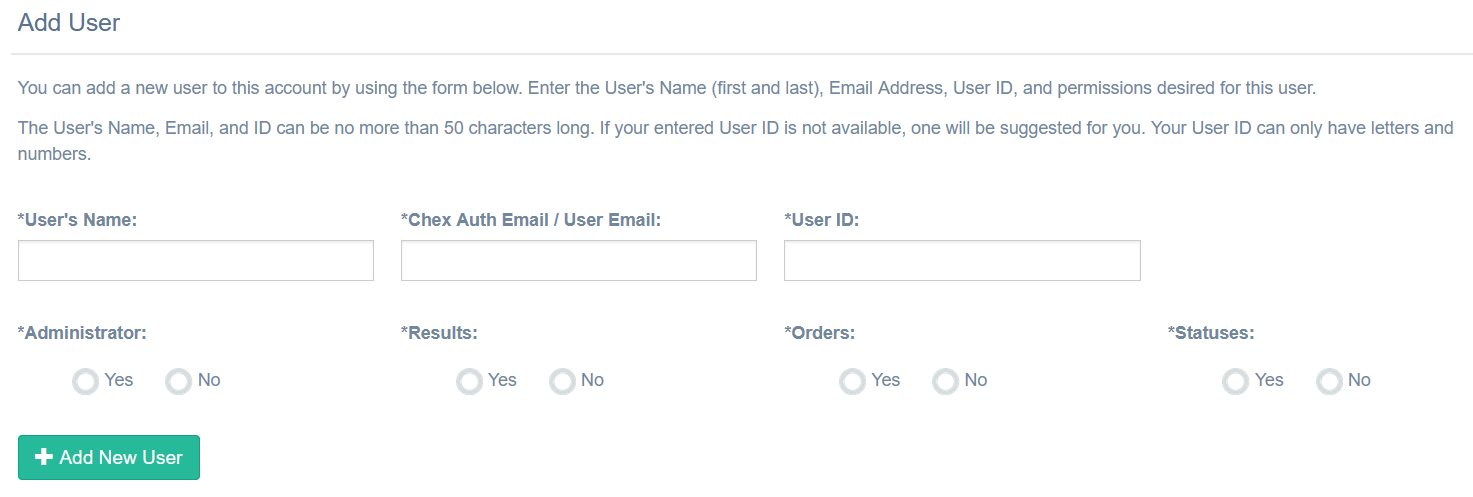
Use the option at the top of the page to Add User.
Complete all required fields:
User Name (e.g., Mary Smith)
Email Address (e.g., mary.smith@company.com)
User ID (e.g., msmith25)
⚠️ Important: Each user must have a unique User ID.
While this User ID is required, it is not used for logging in. Bchex uses ChexAuth (OAuth) for secure login, which allows users to sign in using their email and a verification method instead of a username/password combination.The User ID is used for internal system identification and can also be used to link user access across multiple Aegis accounts.
⚠️ User information must be entered accurately. Once created, user details cannot be edited without assistance from Bchex Client Services.
After creating the user, you can send their login information (see Send Credentials section below).
Duplicate User ID
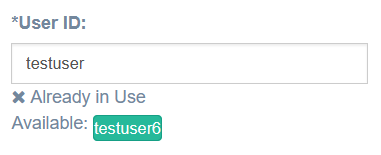
Each User ID must be unique across the system. If the User ID you enter is already in use, Aegis will provide a suggested alternative.
You may select the suggested User ID, or
Enter a different unique User ID of your choice
? Tip: Although the User ID must be unique, users will not use it to log in. Login is handled through ChexAuth (OAuth) using their email address. The User ID is maintained for internal tracking and account linking purposes.
User Permissions
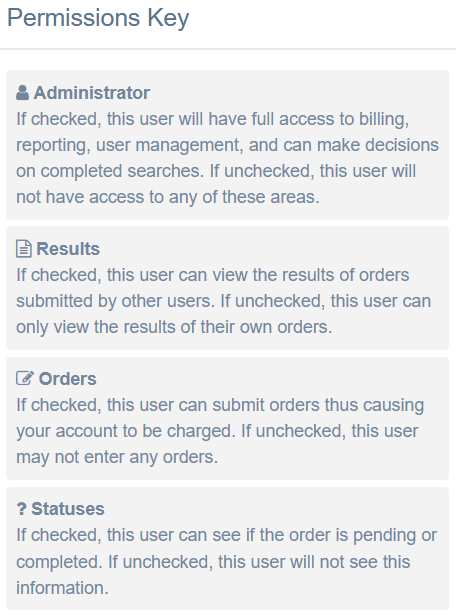
User permissions determine what actions a user can perform within Aegis.
You can assign one or more of the following:
Requests – Place new orders
Results – View completed background check results
Statuses – View order status (pending or complete)
Admin – Full access, including:
Making decisions on completed background checks
Adding or removing users
Use the Permissions Key on the page for additional details.
View and Edit Users
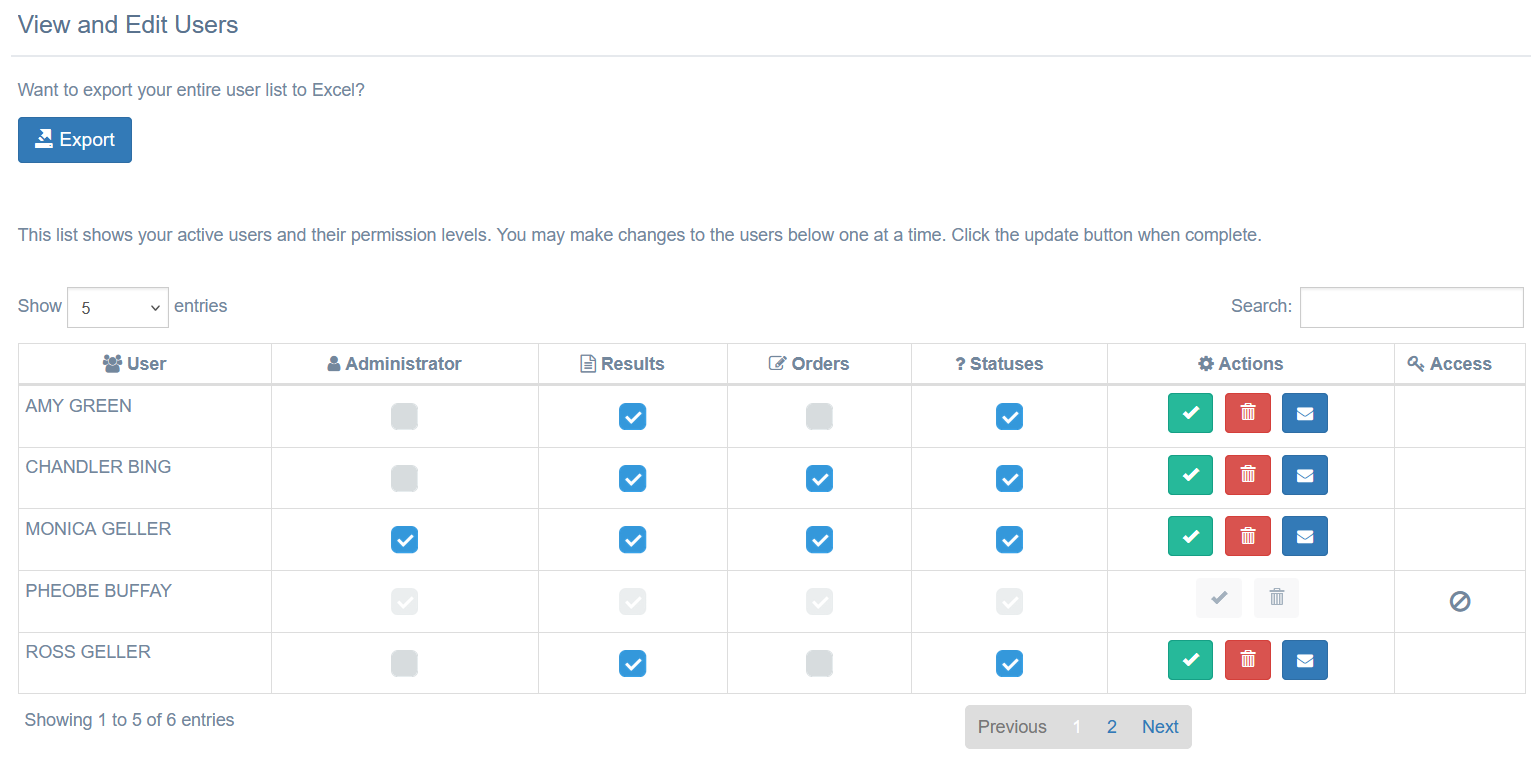
On the Users page, you can:
View all users associated with your account
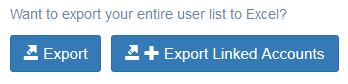
Export a list of users
If your organization uses Single Sign-On (SSO) and has multiple linked accounts, you may also see an option to export users across all accounts.
Updating Permissions
Current permissions are indicated by a blue checkmark
Select or deselect permissions as needed
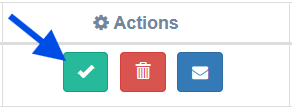
Click the green checkmark to save changes
Disable a User
To disable a user’s access:
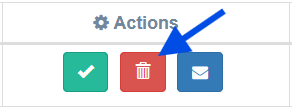
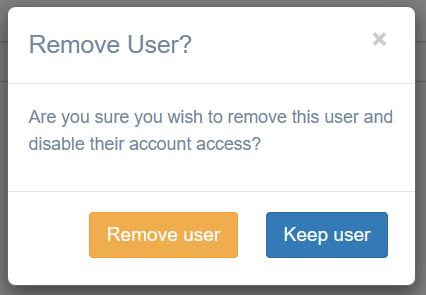
Click the red trash icon next to the user’s name
Confirm the action when prompted
⚠️ Once a user is disabled, they can only be re-enabled by Bchex Client Services.
For assistance, contact clientservices@bchex.io.
Send Credentials
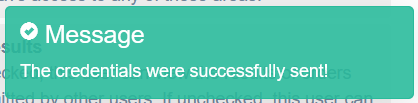
You can resend login credentials at any time.
This is useful if:
A user is having trouble logging in
You want to notify a newly added user of their login details
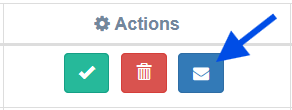
To send credentials:
Click the blue envelope icon next to the user’s name
Multiple Accounts
If your organization has multiple Bchex accounts, users must be added to each account individually if they require access to more than one.
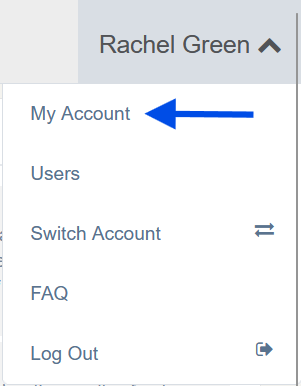
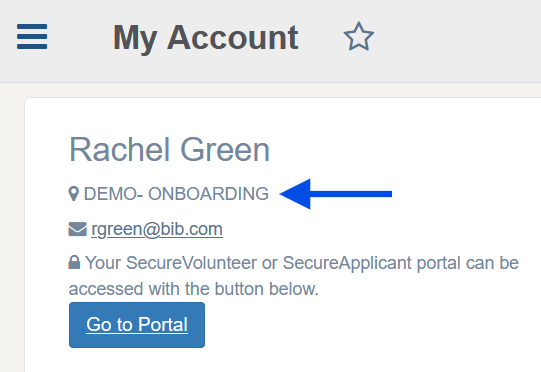
To confirm which account you are currently logged into:
Click My Account
View the account information displayed on the page
 |  |
Single Sign on
If your organization uses Single Sign-On (SSO)—allowing one set of credentials to access multiple accounts—this must be configured by Bchex. See more information about this feature here: Single Sign On.
To enable SSO for a new user, please contact:
clientservices@bchex.io
Need Help?
If you have any questions or need assistance managing users, please contact:
clientservices@bchex.io
Was this article helpful?
That’s Great!
Thank you for your feedback
Sorry! We couldn't be helpful
Thank you for your feedback
Feedback sent
We appreciate your effort and will try to fix the article