A new platform update that keeps your order queue current by closing out reports left undecided past their validity period.
Summary
As part of a recent platform update, Bchex now automatically cancels orders that remain in a Needs Decision status for longer than 90 days. Completed screening reports are valid for 90 days from their completion date. When a report passes that window without a decision being recorded, the system closes the order and adds a clear, time-stamped note to the order's decision history so the reason is always documented.
THE SHORT VERSION If an order has been waiting on a decision for more than 90 days, the system will cancel it for you and log exactly why and when. To keep an order open, simply record your decision within 90 days of the report's completion. |
Why this change
Completed background reports have a limited validity period. Information can age, and acting on a report that is more than 90 days old may no longer reflect a candidate's current record. Automatically closing stale orders helps you in three ways:
- Keeps your queue accurate — your Needs Decision list reflects orders that still need real attention, not ones that were resolved offline months ago.
- Supports compliant decisioning — it discourages acting on reports that have exceeded their validity period.
- Creates a clean audit trail — every automatic cancellation is documented with the reason and date.
What happens automatically
When an order has been in a Needs Decision status for more than 90 days, the system will:
- Cancel the order, moving it out of your active decision queue.
- Add a note to the order's Decision History recording the reason, the date, and that the action was performed by the system.
The note added to the decision history reads exactly as shown below:
| SYSTEM SYSTEM[Date of cancellation] |
| Report canceled: completed more than 90 days ago, exceeding the 90-day validity period. |
GOOD TO KNOW Nothing is deleted. The order, its report, and its full history remain available for your records — the order is simply marked as canceled with the reason clearly noted. |
Where to find this in Aegis
Open the order and choose Decision History/Notes from the left-hand menu. The cancellation appears under Decision History along with its date and a SYSTEM attribution, as highlighted below.
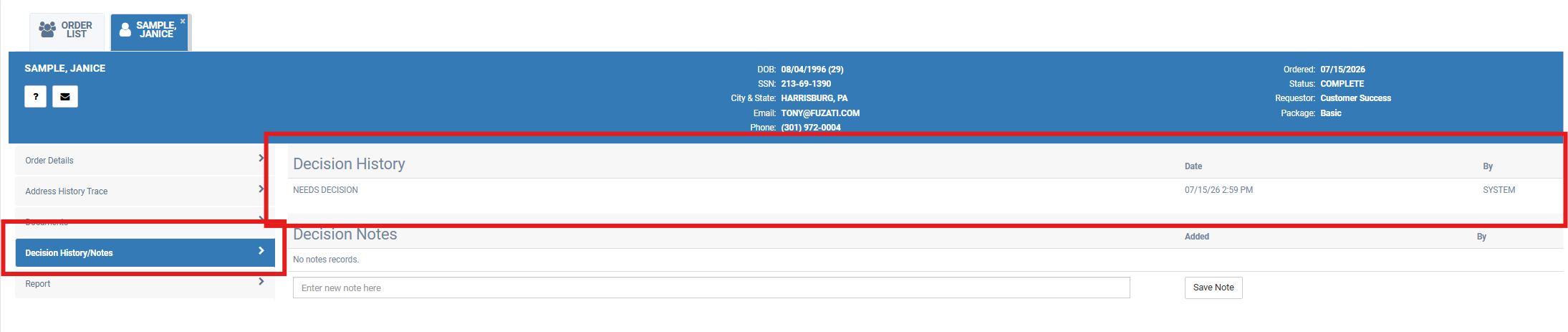
The Decision History/Notes tab in Aegis. System-generated entries display here with the date and a SYSTEM author. (Sample record shown.)
What this means for you
No action is required to enable this — it runs automatically in the background. To make sure an order stays open and available for a decision, record your adjudication decision within 90 days of the report's completion date. Orders you have already decided on are unaffected; this only applies to orders still awaiting a decision.
RECOMMENDED PRACTICE Review your Needs Decision queue regularly and clear decisions promptly. If you need a report re-run after an order has been canceled, you can place a new order at any time. |
Frequently asked questions
Which orders are affected?
Only orders sitting in a Needs Decision status whose report was completed more than 90 days ago. Orders that already have a recorded decision are not touched.
Will I lose the report or its history?
No. The order is marked canceled and a note is added to the decision history. The report and all associated records remain accessible.
How will I know an order was canceled this way?
The order's Decision History will show a system-generated note — attributed to SYSTEM with the cancellation date — stating that the report was canceled for exceeding the 90-day validity period.
Can I still make a decision after an order is canceled?
Once an order is canceled it is closed. If you still need results, you can place a new order so the screening reflects current information.
How do I prevent an order from being canceled?
Record your decision within 90 days of the report's completion date.
Questions? Your Bchex Customer Success team is happy to help.
Email customersuccess@bchex.io • Web www.bib.com
Was this article helpful?
That’s Great!
Thank you for your feedback
Sorry! We couldn't be helpful
Thank you for your feedback
Feedback sent
We appreciate your effort and will try to fix the article