Batch Orders
Aegis provides the ability to submit multiple background checks at once using a Batch Order. This feature is especially helpful for organizations that need to screen or rescreen large groups—such as annual or quarterly rescreening of current employees.
Note: Batch Orders are only available to client-bill accounts.
Batch Ordering allows you to select from various background check options, giving you flexibility in how you process large volumes of applicants.
Placing a Batch Order
To begin:
- In the left navigation panel, go to New Orders > Background Batch Upload
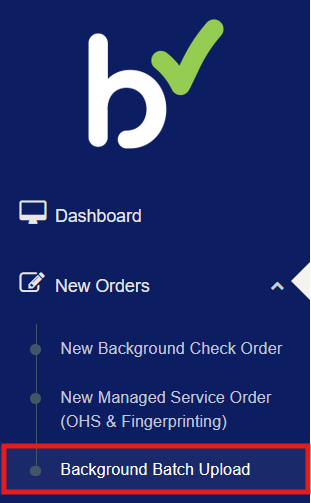
Note: Batch ordering is not enabled by default and must be activated upon request. If you are interested in using the Batch Order feature, please contact clientservices@bchex.io to have it added to your account.
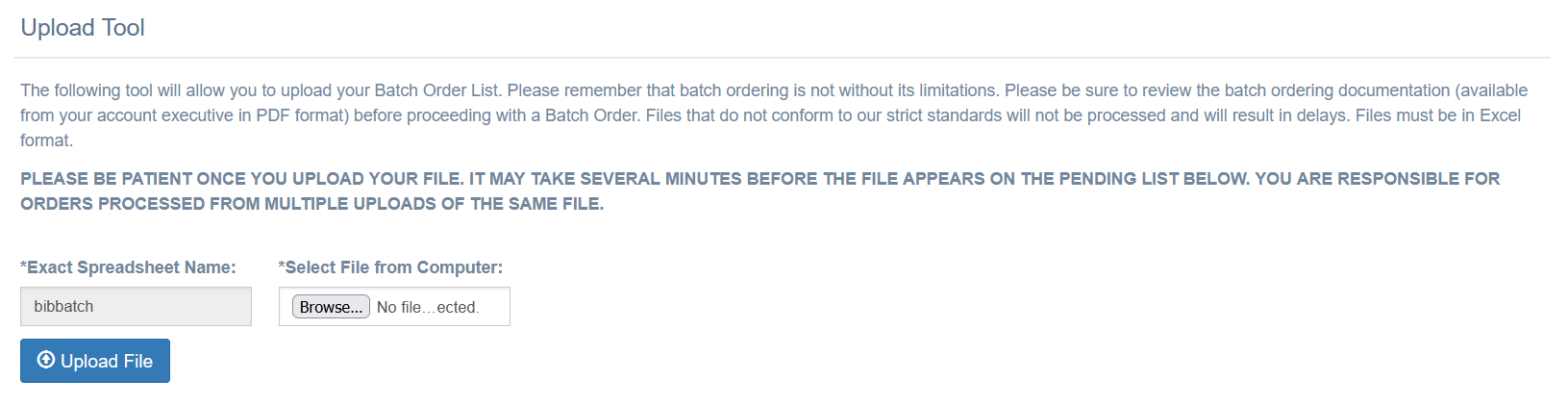
- You will see the Batch Upload Tool, which includes:
Instructions:
Reminders about the required file name, recommendations to review, and acceptable format (Excel).Upload Section:
A designated area where you can select your file to upload.
- Once the file is uploaded, Aegis will begin validating and processing the batch.
Batch Order Status and Monitoring
Aegis provides two lists to help you track the progress and history of your batch submissions:
Pending Batch List
Displays batches that are still processing.
Lists any files that failed to process due to formatting errors or missing information.
You can review the error messages, correct the file, and reupload as needed.

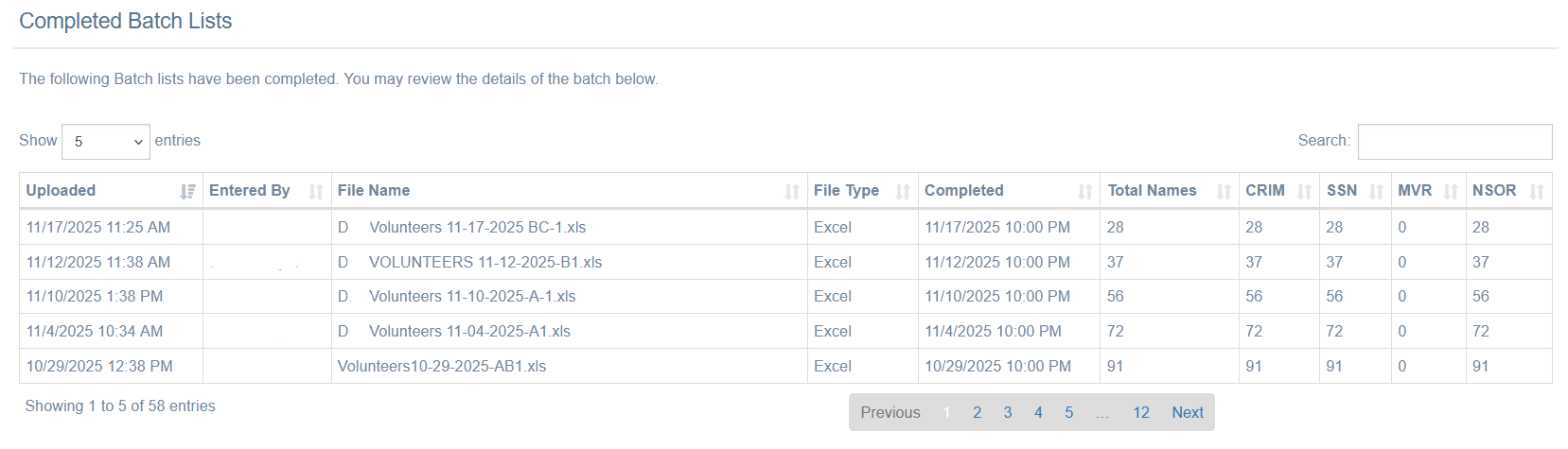
Completed Batch List
Shows all previously submitted batch orders that have successfully processed.
Allows you to review details such as:
Date submitted
Submitters name
Number of applicants processed
Search types
This history can be helpful for audit purposes or for confirming rescreening cycles.
Batch Order Instructions and Sample File
Attached are the full instructions for batch file formatting, along with a sample Excel file for reference. If batch ordering is not yet enabled in your Aegis account, please contact clientservices@bchex.io.
Before fully activating the feature, our team will work with you personally on your first batch file to ensure it is formatted correctly and will process successfully.
The sample file contains two example entries to demonstrate the correct formatting. Please make sure to delete these test records before submitting your final file.
Was this article helpful?
That’s Great!
Thank you for your feedback
Sorry! We couldn't be helpful
Thank you for your feedback
Feedback sent
We appreciate your effort and will try to fix the article