About the AE Import Wizard
TABLE OF CONTENTS
- About the AE Import Wizard
- Preparing Your Batch File
- Placing a Batch Order
- Common Validation Errors
- Need Help?
 | Applicant Express provides the ability to submit multiple background checks at once using the AE Import Wizard. This feature is especially helpful for organizations that need to screen or rescreen large groups — such as annual or quarterly rescreening of current employees or volunteers. ✅ Good news: Batch ordering is automatically enabled for all Applicant Express accounts — no additional setup is required. |
Preparing Your Batch File
Before you begin, make sure your file is formatted correctly to avoid validation errors during upload.
Your file must be saved in .xlsx (Excel) format and include the following required column headers in Row 1:
| Column | Description |
|---|---|
| first_name | Applicant's first name |
| last_name | Applicant's last name |
| Applicant's email address |
⚠️ Important formatting rules:
- Column headers must match exactly as shown above, including underscores. Variations such as "firstname" or "lastname" will cause a validation error.
- All three fields are required for every row — blank values will be flagged as errors.
- Email addresses must be in a valid format.
- Each batch file supports a maximum of 5,000 rows. If your list is larger, split it into multiple files and upload them separately.
- Each batch file is tied to a single package. If you need to order multiple packages, submit a separate file for each one.
A sample template is attached to this article for reference. Be sure to remove any sample rows before submitting your final file.
Placing a Batch Order
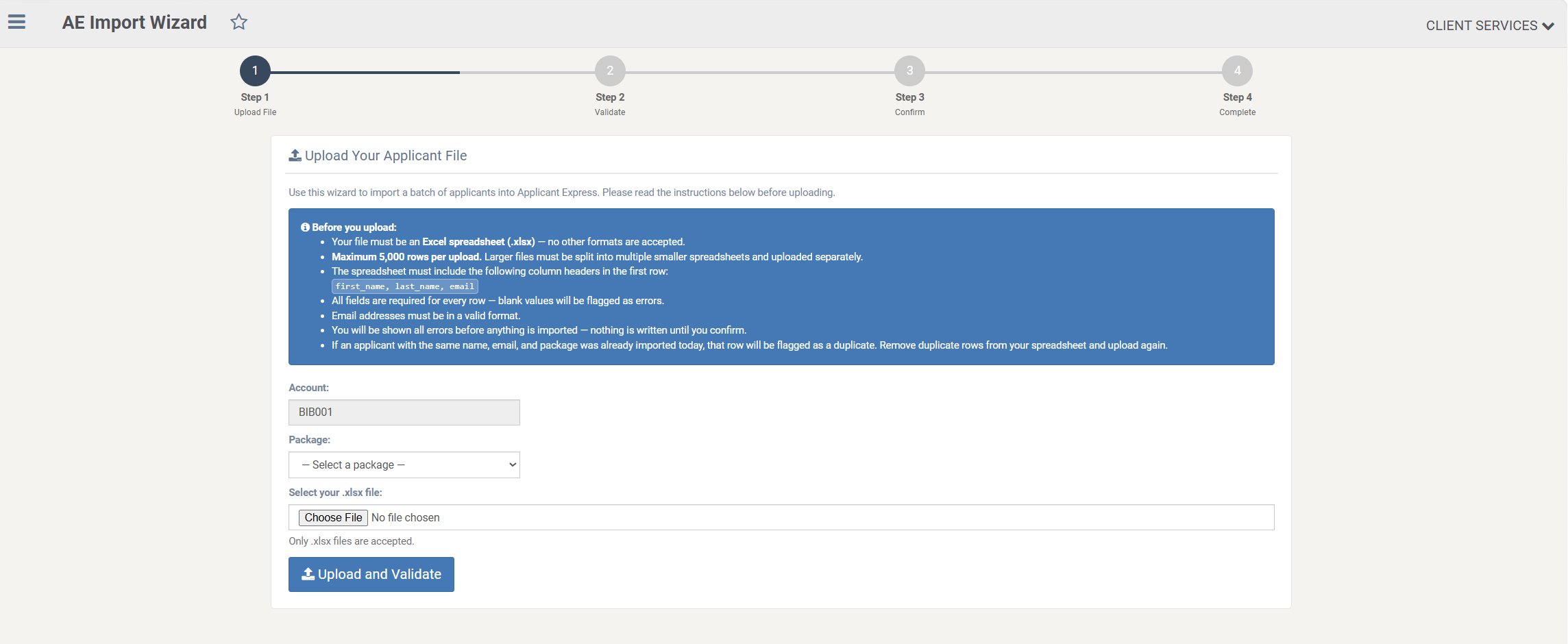
Step 1 — Upload File
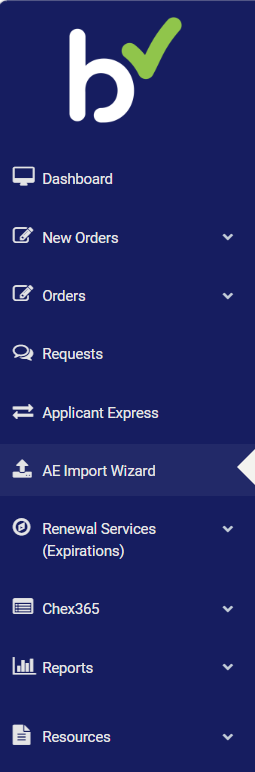
- In the left navigation panel, click AE Import Wizard.
- The Upload File screen will load. Review the "Before you upload" instructions panel carefully before proceeding.
- Your Account will be pre-filled. Select the appropriate Package from the dropdown.
- Click Choose File and select your completed .xlsx file.
- Click Upload and Validate to proceed.
Step 2 — Validate
After uploading, the wizard will automatically validate your file for formatting and completeness.
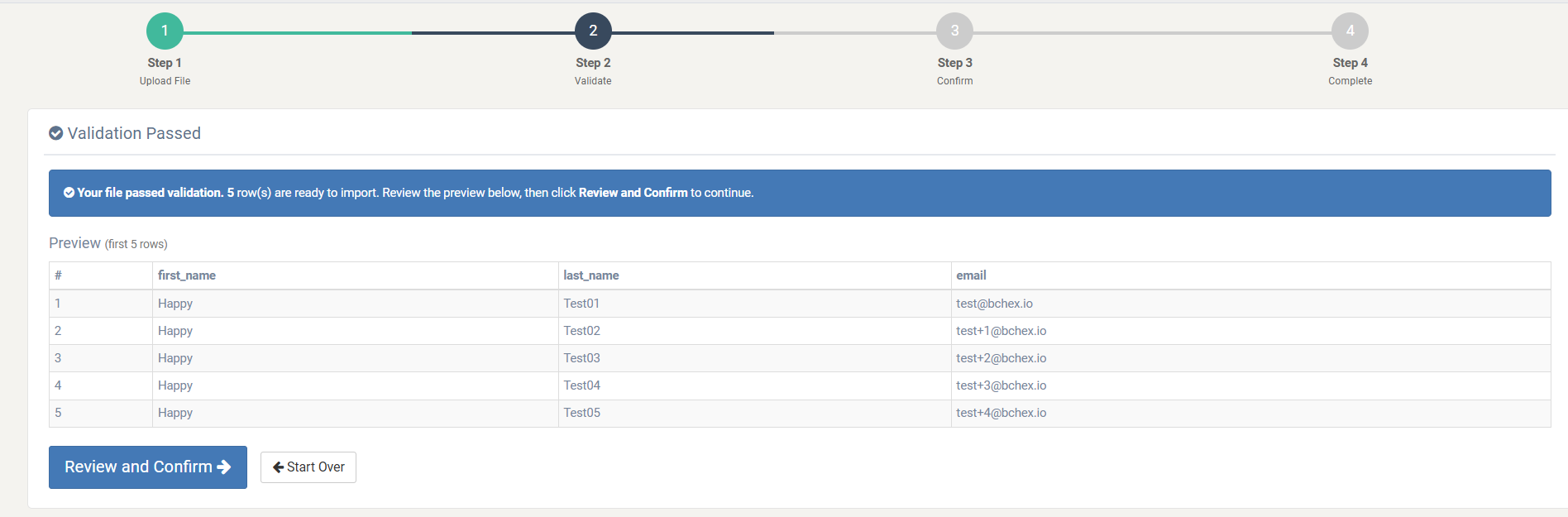
If your file passes validation:
You will see a "Validation Passed" confirmation along with a preview of your rows. Review the preview carefully to confirm everything looks correct, then click Review and Confirm to continue.
If your file contains errors:
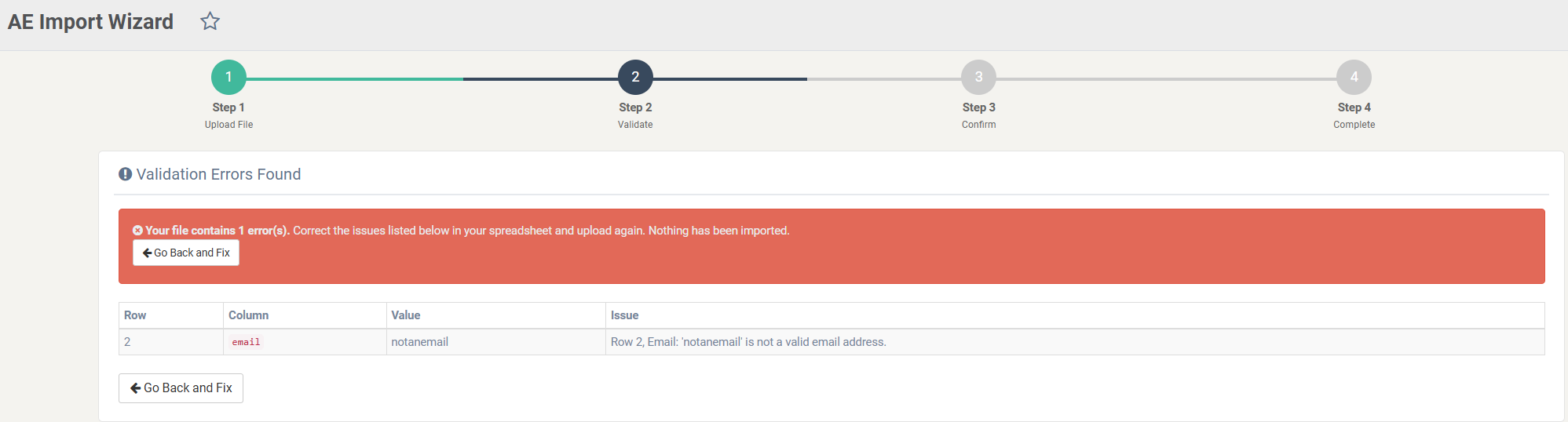
A "Validation Errors Found" panel will appear, listing each issue by row, column, and description. Nothing will be imported at this stage.
To resolve errors:
- Click Go Back and Fix.
- Correct the issues in your spreadsheet.
- Re-upload the file.
Tip: The error table lists all issues at once. Correct everything shown before re-uploading to avoid multiple attempts. See the Common Validation Errors section below for examples.
Step 3 — Confirm
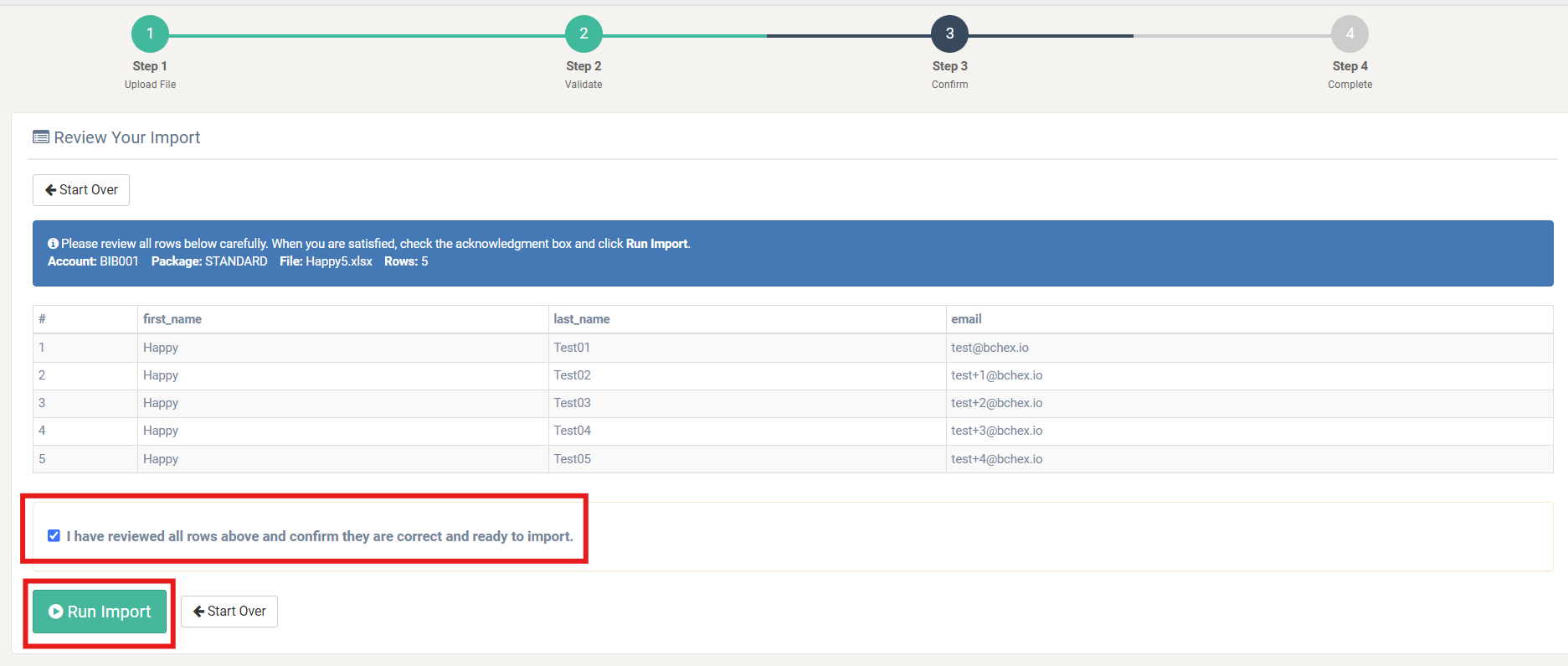
The confirmation screen displays your Account, Package, file name, and row count for final review.
- Review all rows in the preview table carefully.
- Check the acknowledgment box: "I have reviewed all rows above and confirm they are correct and ready to import."
- Click Run Import to proceed — this button will activate once the acknowledgment box is checked.
⚠️ Please review carefully before clicking Run Import. Once submitted, the import cannot be undone.
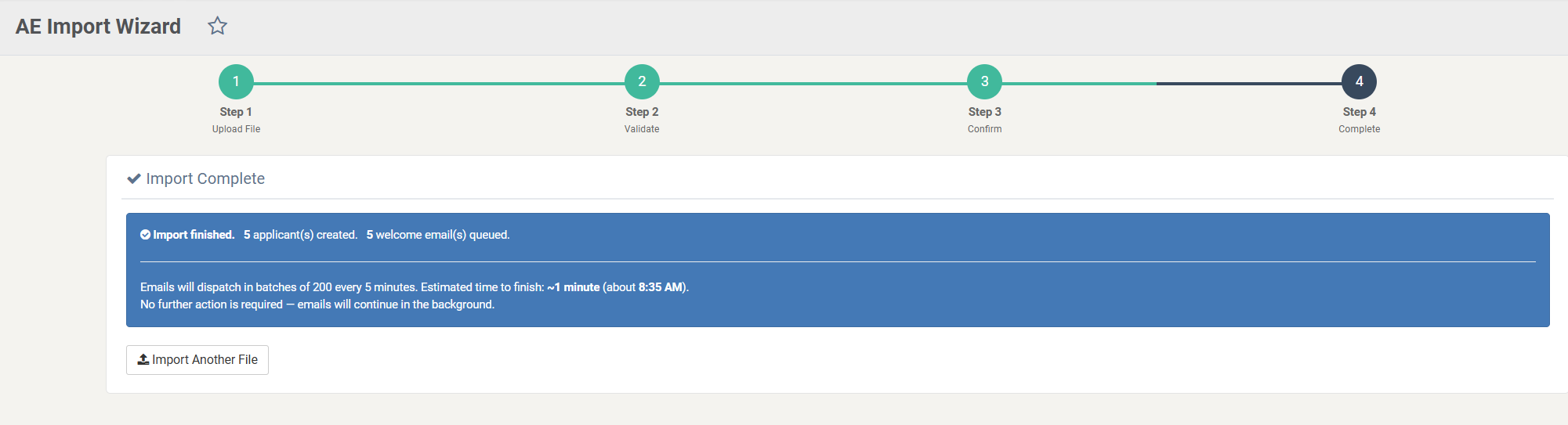
Step 4 — Complete
Once submitted, the Import Complete screen will confirm:
- Number of applicants created
- Number of welcome emails queued
- Estimated time for emails to dispatch
Emails will send automatically in the background — no further action is required.
Each applicant will receive a welcome email containing their login credentials and a link to complete their application in Applicant Express.
Note on Email Templates: Welcome emails sent through the AE Import Wizard will use the Bchex default email template. If your account has a custom email template configured, please be aware that it will not be applied to batch imports — the default template will be used instead.
Common Validation Errors
If your file does not meet the formatting requirements, the wizard will display a "Validation Errors Found" screen at Step 2 with a table identifying exactly which rows need to be corrected. Nothing is imported until all errors are resolved.
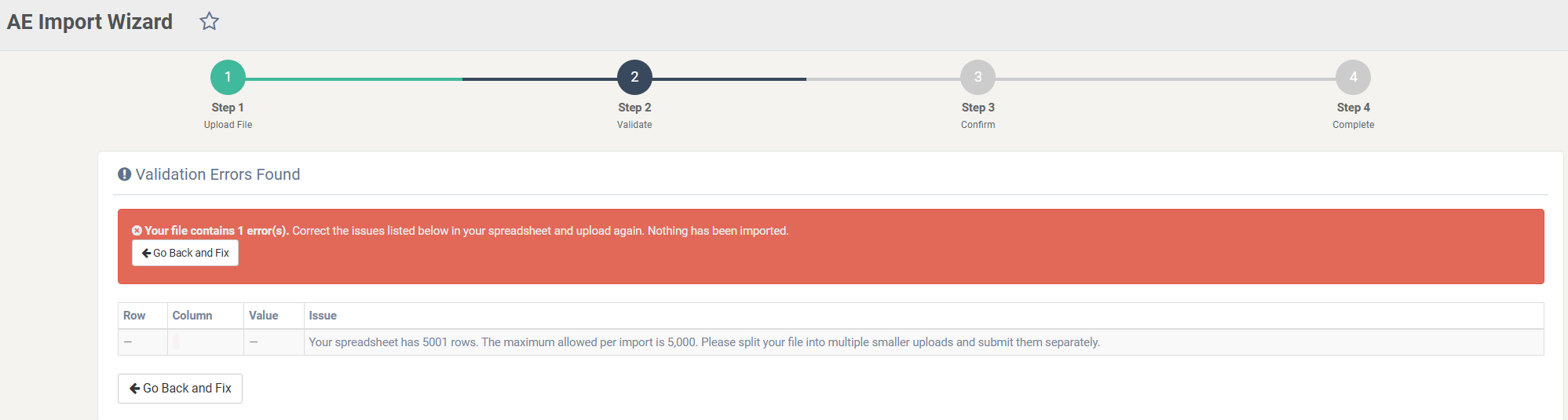
File Exceeds 5,000 Rows
If your spreadsheet contains more than 5,000 rows, the import will be blocked.
✅ Fix: Split your file into multiple smaller spreadsheets and upload them separately.
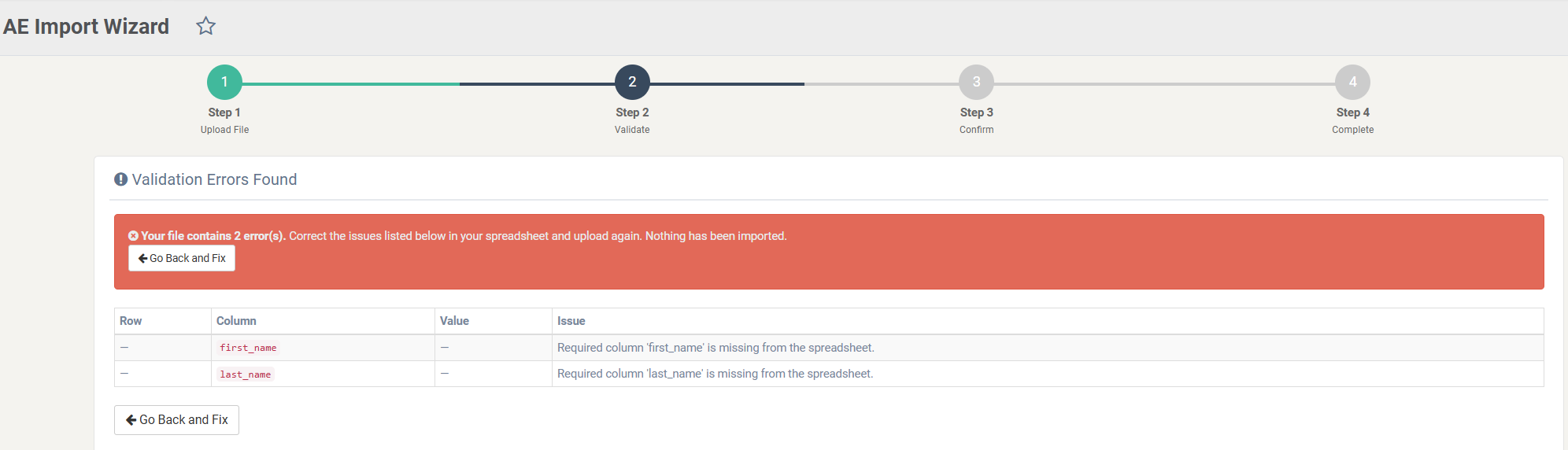
Missing Required Columns
If the column headers are missing or misspelled (e.g., firstname instead of first_name), the wizard will flag each missing column.
✅ Fix: Ensure all three column headers — first_name, last_name, and email — are present in Row 1 and spelled exactly as shown.
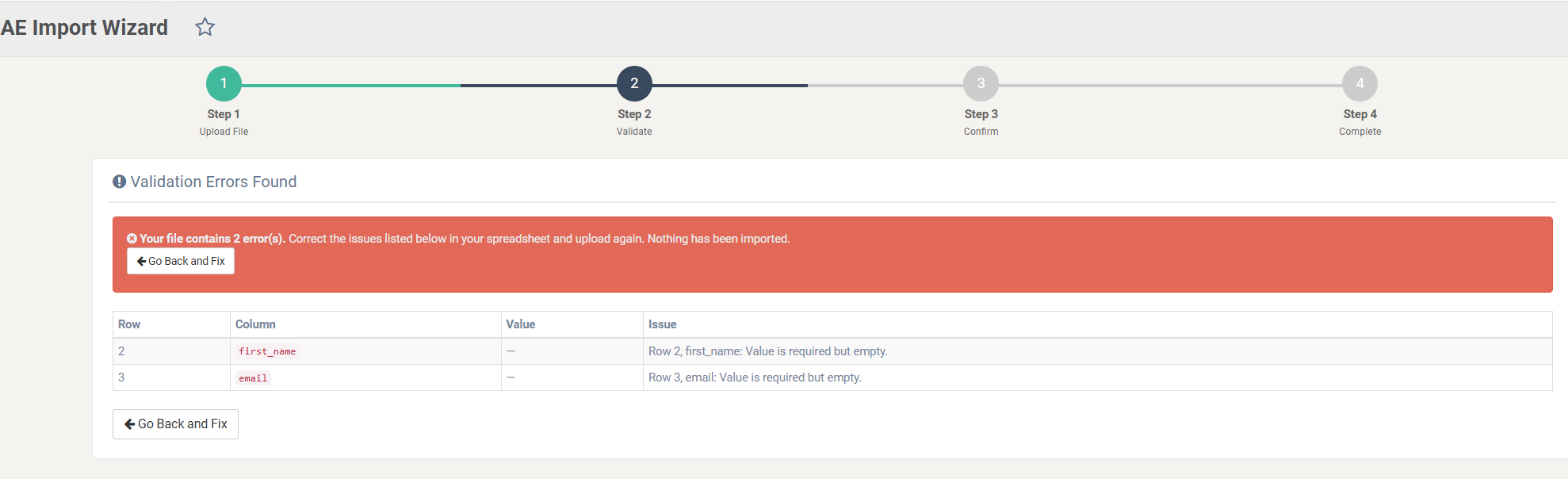
Blank Required Fields
If any row is missing a value in first_name, last_name, or email, each blank will be listed as a separate error.
✅ Fix: Review your spreadsheet and ensure every row has all three fields completed before re-uploading.
Invalid Email Format
If an email address is not properly formatted, the wizard will identify the row and the invalid value.
✅ Fix: Correct the email address to ensure it follows a valid format (e.g., name@domain.com) and re-upload.
Need Help?
Before your first batch import, our team is happy to review your file to ensure it is formatted correctly and will process successfully.
If you have any questions, please contact us at: clientservices@bchex.io
Was this article helpful?
That’s Great!
Thank you for your feedback
Sorry! We couldn't be helpful
Thank you for your feedback
Feedback sent
We appreciate your effort and will try to fix the article